
Invite Caishen to Your Desktop with FriendPet
By FriendPet Team · 2026-08-09 · 8 min
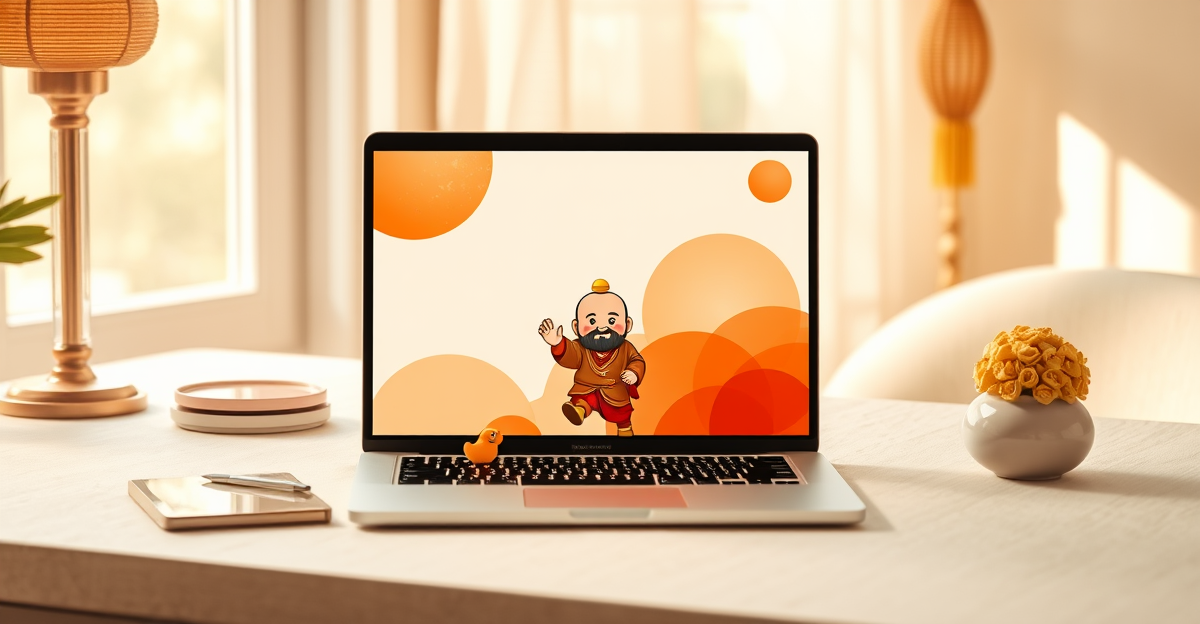
Around the Lunar New Year—and honestly anytime someone shares a cheerful red-robed figure with a gold ingot—plenty of people smile at Caishen (the Chinese God of Wealth). It is less about literal fortune-telling and more about that warm, festive feeling: round face, bright colors, a little wish that the week goes smoothly.
Screen time often feels the opposite—tabs, unread mail, another spreadsheet. A small character walking in the corner of the page, rolling when you click, can make the grind feel less lonely. Not a ritual. Just company while you work.
FriendPet turns one image into a browser desk pet. Below: why people like Caishen, what he can do on your desktop, how to make your own—and how to ask for the one from the short if you prefer that route.
Why Caishen feels good to keep around
In Chinese-speaking culture, Caishen shows up as New Year prints, shop door stickers, emoji, and cute illustrations. He stands for celebration and a light kind of hope—something cheerful to look at when you want a bit of good vibes.
Putting him on your screen is the same impulse as putting a cat or a cartoon friend on the desk: you like the character, and you want him nearby. The difference is he lives in the browser tab and keeps you company across pages.
The “help” people actually want
Most people are not hunting for mysticism. They want small, ordinary things:
- Company — someone moving in the corner while a page loads or a long doc waits.
- A break for the eyes — a roll or a sway walk, then back to work.
- A quick hello — click for a bubble, like greeting a desk buddy.
- Share the fun — send the pet to a friend so their desktop gets a festive guest too.
That is what FriendPet’s Caishen is for: walk on the current page, switch actions, hide when you need quiet. Right-click to tuck him away; bring him back when you want the room brighter.
Watch the short first
The video walks through search → create → enable → add actions. If you like following along, open it here:
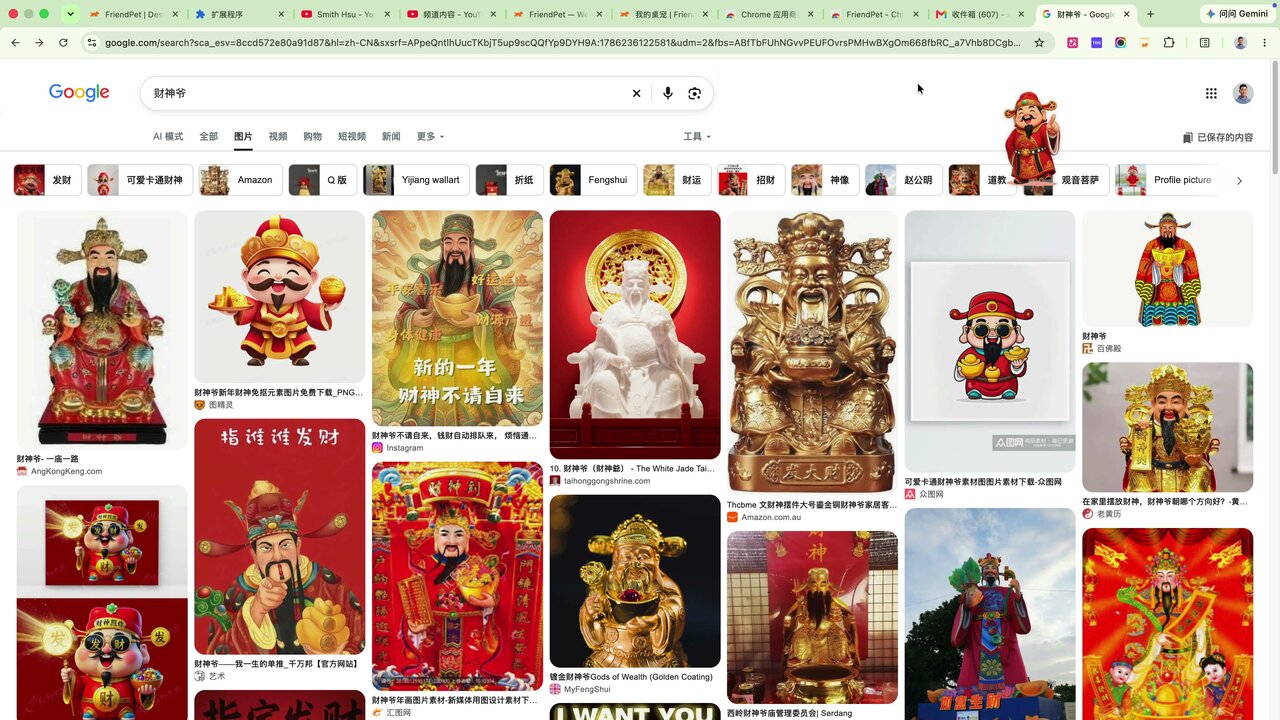
Need the extension? Start at the download page, then use the steps below.
Make your own: one image to a desk Caishen
Use an image you have the right to use—public downloadable art, your own drawing, or something a friend licensed to you. After you sign in, your first desk pet can be generated free (welcome credits).
Create
Pick a clear, front-facing Caishen image. Open the create panel in the extension, choose the photo, and start (about one to two minutes; you can wait in the background):
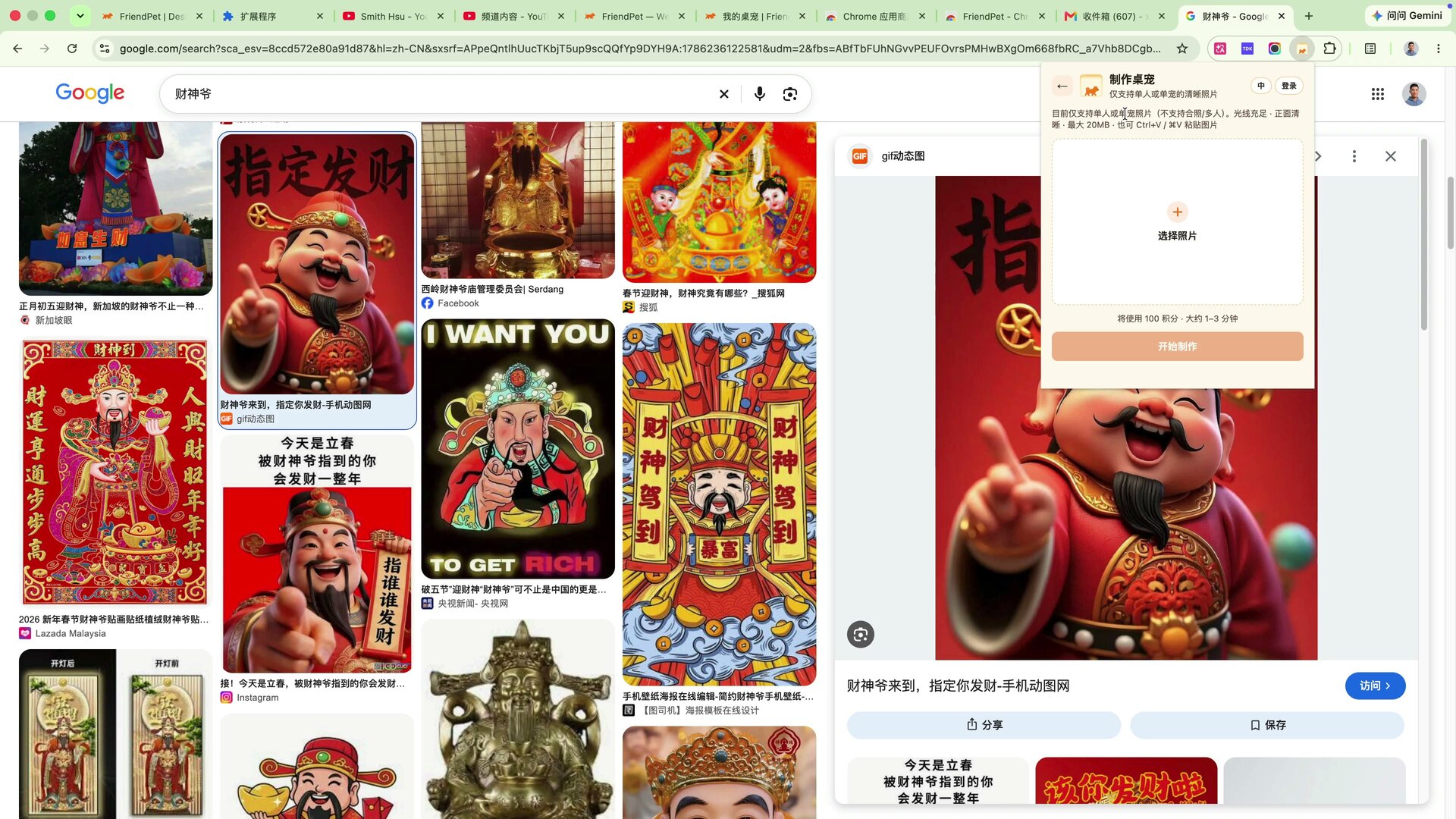
- Open FriendPet → Create my own desk pet.
- Choose a photo (or paste) → Start creating.
- When it is ready, select him in the list and follow the prompts to enable on the page.
After he is on screen
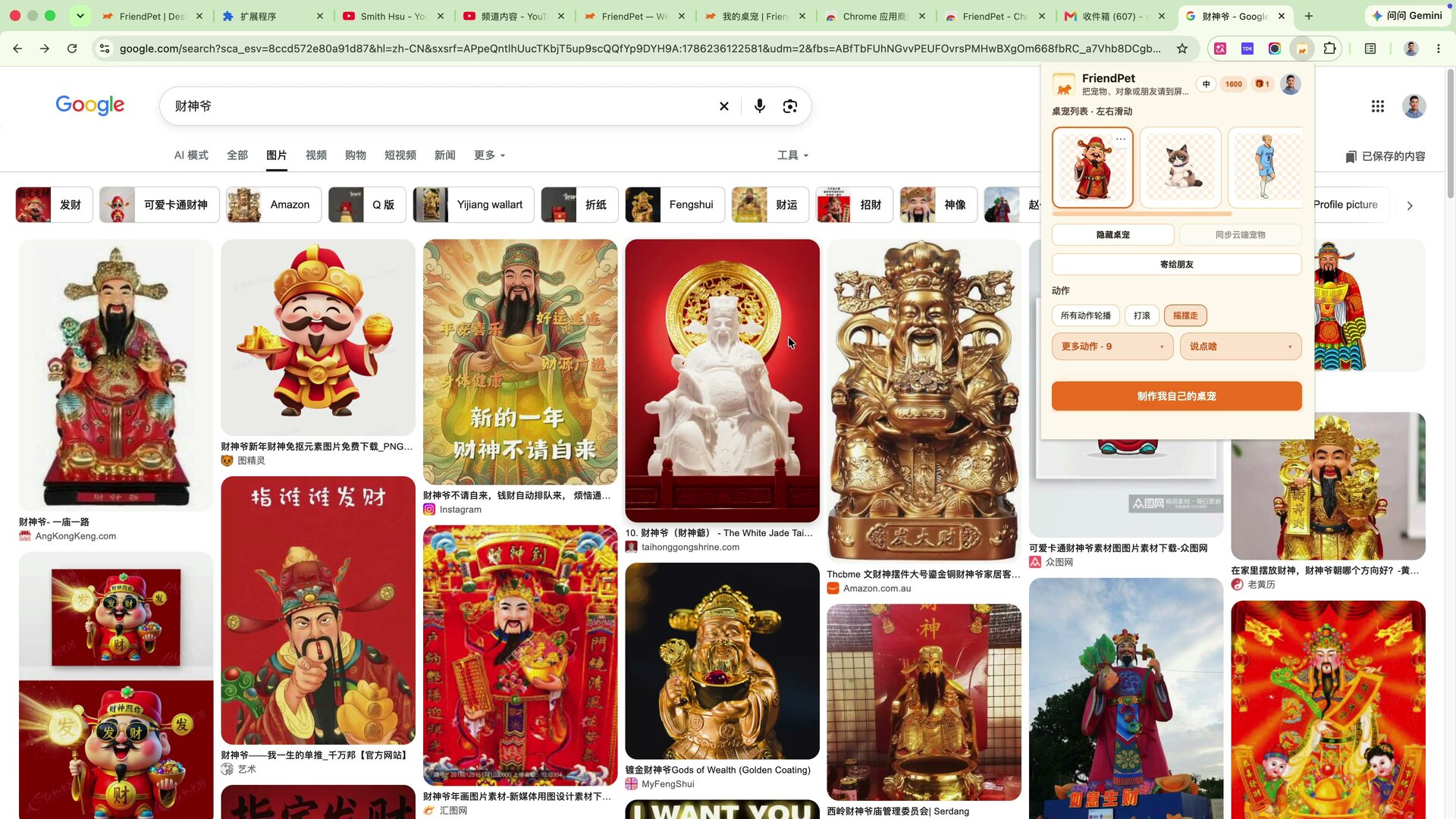
Once enabled, Caishen walks on the current page. In the popup you can switch actions (roll, sway walk, and more) or send him to a friend:
Want to make your first one free:
FreeCreate your first desk pet
Prefer the one in the video?
If the dancing Caishen in the short is the one you want, you do not have to start from scratch: open the video above and leave your Google email in the comments. When I see it, I will invite that same one to your desktop.
Just write the email clearly. After you install the extension, enable him from the email or in-app prompt.
FAQ
Do I have to make my own?
No. Make your own if you want a custom look; want the video version, leave your email in the comments.
Will it get in the way?
The pet floats on the page and can be hidden anytime. When you need focus, tuck him away.
How long after I comment?
It is handled by hand, so I will get to comments as soon as I can; busy days may take a little longer.